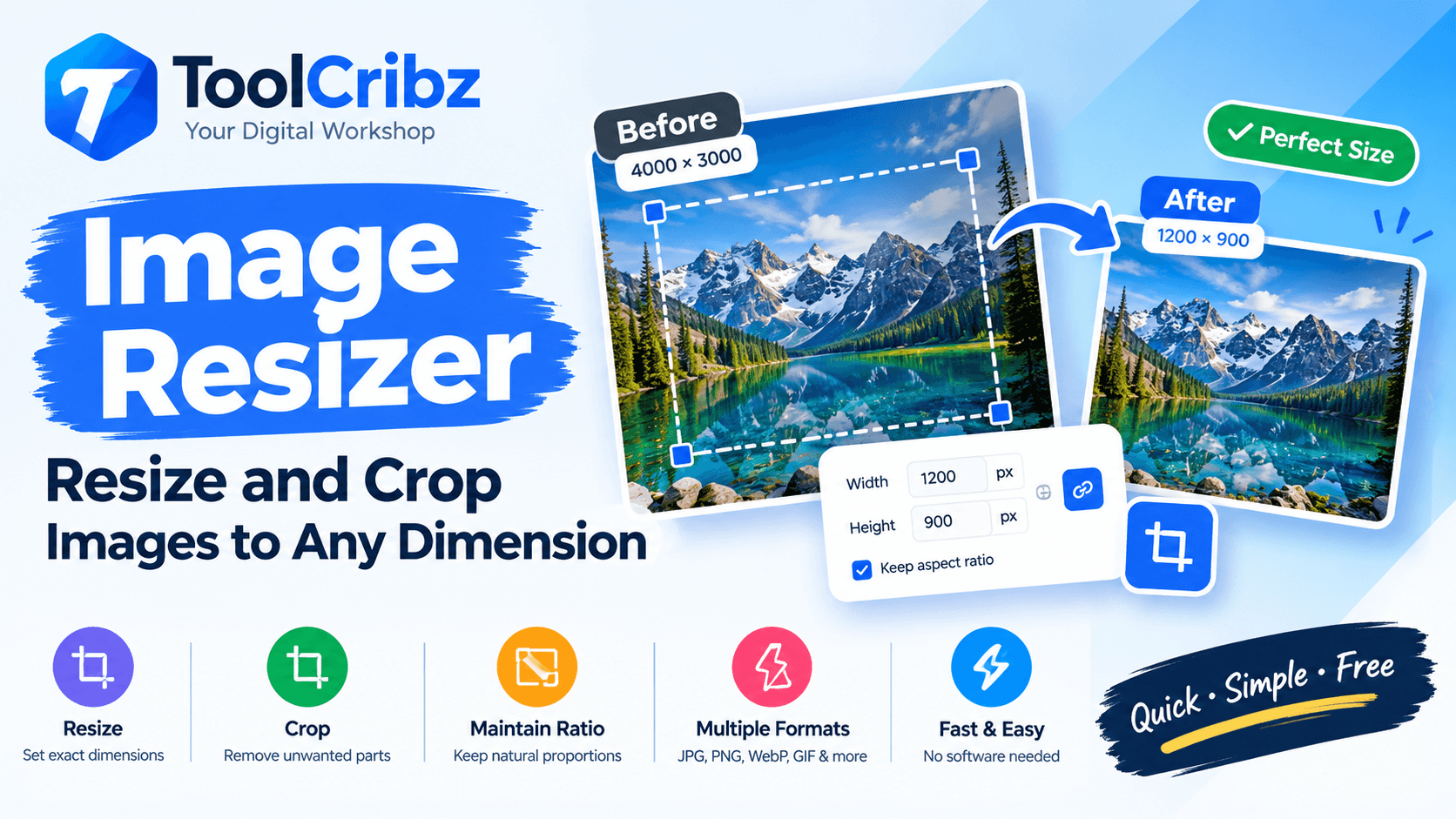
An Image Resizer changes the width and height of an image while preparing it for its intended use. A large image such as 4000 by 3000 pixels may need to become 1200 by 900 pixels for a website, application, document, or profile picture.
Resizing changes the dimensions of the complete image, while cropping removes unwanted portions. When exact dimensions have a different aspect ratio, crop first and resize afterward to avoid stretching or distortion.
Aspect ratio describes the proportional relationship between width and height. Common ratios include 1:1 for square images, 4:3 for standard landscapes, 16:9 for widescreen content, and 9:16 for vertical content. Keeping the ratio locked helps preserve natural proportions.
To resize an image online, open the ToolCribz Image Resizer, upload an image, enter the desired dimensions, maintain the aspect ratio when appropriate, crop if needed, apply the resize, and download the result.
Resizing is useful for websites, social media, government and other online forms, profile pictures, presentations, documents, thumbnails, and product images. Always follow the exact requirements of the destination, including dimensions, file size, ratio, and format.
Start with a clear, high-quality original and avoid enlarging a small image too much because upscaling can create blur or pixelation. If you also need a smaller file, resize first and then use an Image Compressor. An Image Converter can be used afterward when a different format is required.
Common questions: resizing can reduce file size because fewer pixels are stored, but the exact result depends on format and compression. You can resize JPG, JPEG, PNG, WebP, GIF, and other supported formats in a browser on a computer or mobile device.
Use the right dimensions, preserve the aspect ratio whenever possible, and compress the final image when a smaller file is required.